Descriptions can be configured in the Description database and then referred to from any location where multimedia can be connected (e.g. Items, Catalogues, Pages).
Note: You would create descriptions in the Description database if you are planning on connecting the same description to several multimedia objects. The description would thereby act as a “standard text”.
These descriptions are ideal when you want to provide text for a multimedia object instead of the object itself (e.g. image). The text will appear as a link. When the user clicks the text, the actual connected multimedia object will launch.
- Click Shared components.
- Click Shared descriptions.
- You access the Shared description page. Click New.
- Context type
- Select the context type from the drop-down list.
- Description database id
- Enter the applicable id.
- Description
- Enter the actual text in system language.
Panel image
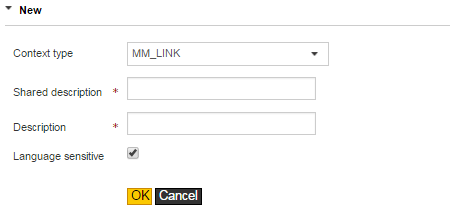
Click OK.
Connect a description
You can connect texts to Items.
- Click Item.
- Click the Multimedia button for the applicable item.
- Click New.
- Resource type
- Select the type of multimedia from the drop-down list.
- Resource name
- Enter the file name of the resource type.
- From date
- Defaults with today’s date, but can be changed to that applicable.
- To date
- Defaults with today’s date plus 10 years. Enter the applicable end date valid for displaying this multimedia resource.
- Resource location
- Enter the location where the resource can be found.
- Description database id
- If there is a standard description for this resource, select that applicable from the drop-down list. If one does not exist, you always have the possibility of manually entering the applicable text in Description below. You must, however, select Manual in the drop-down list of this field.
- Description
- Manually enter the applicable text if no description database id is found or applicable.
- Presentation sequence
- You can, optionally, enter the order in which it should appear.
- Language sensitive
- Check this box for any manually entered description, if you want to provided the description in other languages.
- Default on web
- Check this box if you want the multimedia resource to automatically be shown on the site. This is advantageous for images. However, if you have connected several images, only one will be shown as the default. If you do not check this box, the resource will be shown as a link. The user must click the link to access the multimedia object.
Panel image
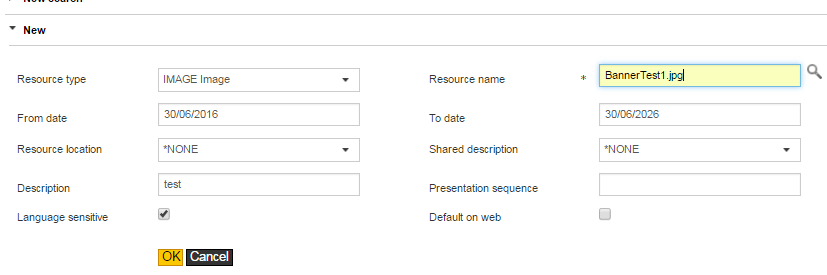
Complete the following information:
Click OK.
As an image was connected to the same item in Configure and connect multimedia, both the image and the description (as a link) will be displayed on the Product information page.
Related topics
- About setting up and managing your site
- Configure on application level
- Configure/modify settings
- Configure the settings for sundry users
- Configure and connect data restrictions
- Create and connect texts
- Configure pages
- Define and connect links
- Configure and connect multimedia
- Configure shipment tracking
- Translation